Bloodborne on Steam Deck and Linux
A handheld runs this better than you would expect — with two settings most people get wrong.
On a Steam Deck use bbport's AppImage at 1280x720 and add it to Steam as a non-Steam game; bbhost ships its own Steam Deck bundle. Start the game from Steam, or every button press registers twice.
Short answer: use bbport's AppImage on the Steam Deck, pick the 1280x720 output — the game is 16:9 and the Deck's screen is 1280x800, so anything else gets bars — and add it to Steam as a non-Steam game. bbhost ships its own Steam Deck bundle with its own instructions. Either way, start the game from Steam, or the desktop controls fire alongside the pad and every press registers twice.
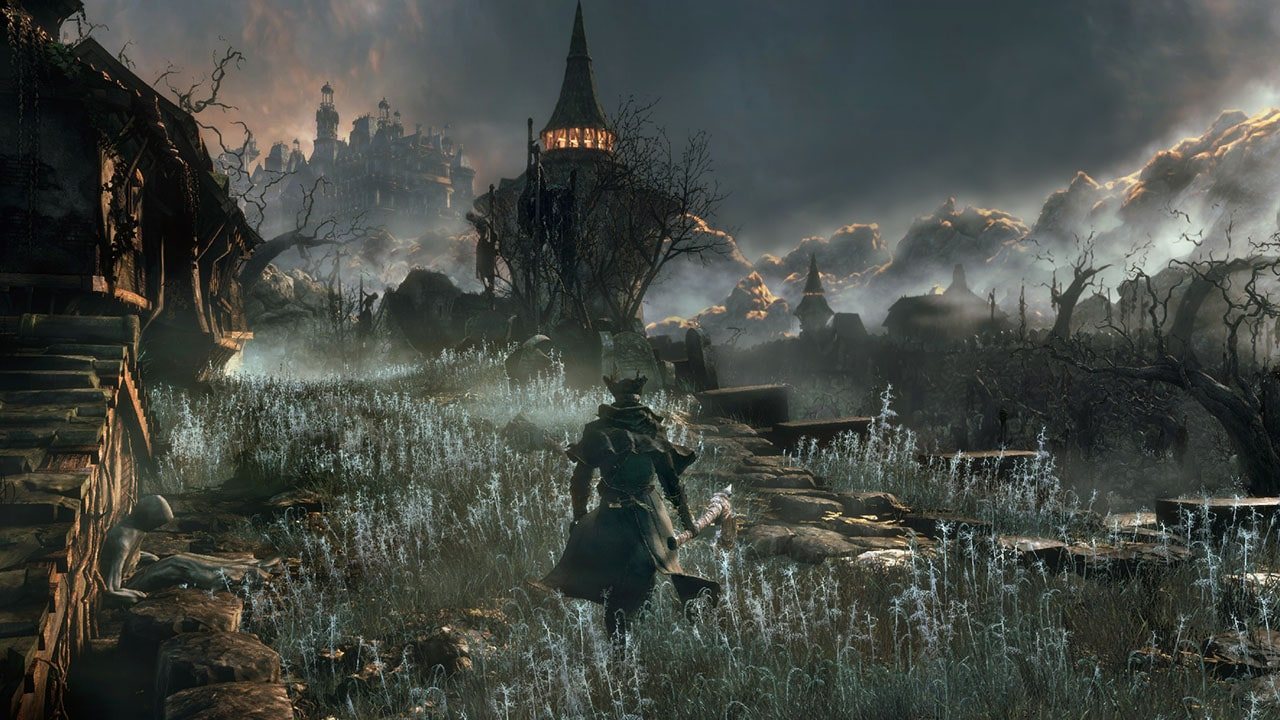
Official Bloodborne screenshot, PlayStation.
Why a handheld handles this
A native port runs the game's own x86-64 code directly, so a Deck is not being asked to emulate anything on the CPU. What it is being asked to do is drive a Vulkan renderer at 1280x720 with an integrated GPU — which is exactly the configuration these ports scale down to. bbport's own documentation lists the Steam Deck as a supported device, and bbhost ships a dedicated Deck bundle. The 16 GB of RAM and 8 GB of VRAM the projects recommend for desktops are not the Deck's numbers; plan on 720p, FSR, and a 30 or 40 fps target.
bbport on the Deck
bbport builds an AppImage for exactly this case:
- Build it with
bash build.sh && bash packaging/appimage.sh, which produces
dist/Bloodborne-bbport-x86_64.AppImage. A prebuilt release may save you the build.
- Run it once so it creates its data directory at
~/.local/share/bbport. - Add the AppImage to Steam with Add a Non-Steam Game. No launch options are needed for the
ordinary case — and the compatibility tool does not matter.
- Pick 1280×720 as the output resolution. The Deck's panel is 1280×800 and the game is 16:9;
at any other output you get thin bars top and bottom.
--playafter the command starts the game without the launcher window, which is what you want
in Game Mode.
Two details from the project's own notes, both worth knowing before you try them:
- Steam's overlay is removed before bbport's own programs start, so the Steam overlay will not
appear over the game. That is deliberate, not a fault.
- If Steam runs games without FUSE — a NixOS FHS sandbox is the example the project gives — the
AppImage exits with Cannot mount AppImage. The documented launch options are:
TMPDIR=$HOME/.cache APPIMAGE_EXTRACT_AND_RUN=1 NO_CLEANUP=1 %command%The AppImage then unpacks itself once (around 2 GB, under ~/.cache/appimage_extracted_*), takes about ten seconds on first start, and reuses that copy afterwards. Without TMPDIR it would unpack into Steam's /tmp, which is in RAM on the Deck.
MangoHud is bundled in the AppImage; turn it on with the launcher's checkbox. If you also have MangoHud installed system-wide, or Steam's performance overlay is on in Game Mode, only one of them draws — two produce doubled, offset text.
Upscaler models are not packaged. FSR 3.1 needs nothing extra. FSR 4 and FSR 4.1.1 models are built on your own machine, and recording the 4.1.1 model on the Deck itself was not verified at the time of writing — the project's advice is to build on a PC and copy the fsr4_411 folder across.
bbhost on the Deck
bbhost ships a Steam Deck release bundle alongside its Windows and Linux ones, with a STEAMDECK.md in the archive covering its own setup. What applies from the general case still applies: a Vulkan 1.3 driver, a game folder at 1.09, and the same eboot the desktop build wants.
Installing a game folder on a Deck
Both routes want the same thing the desktop versions want — a dumped CUSA03173 (or CUSA00900) folder with the 1.09 update applied, plus a decrypted 1.09 eboot.bin. On a Deck that usually means copying a dump you made and prepared elsewhere, over the network or on a card. The update folder layout both projects accept — CUSA00900-UPDATE sitting beside the game folder — is the tidier way to move it, and it avoids the "update missing" class of failure entirely.
Saves and shader caches land in the same relative places as on desktop: user/ next to bbport's install, or the %LOCALAPPDATA%-equivalent data directory for bbhost. On a Deck's internal storage, the pipeline caches are the bigger of the two and they rebuild themselves if deleted, so clearing them is a legitimate way to get disk space back.
Linux beyond the Deck
On a Linux desktop, bbport is the native route and shadPS4 is the emulator route.
- bbport builds with GCC, CMake, Ninja, Python 3, glslang, SDL3 and the Vulkan headers; with Nix,
shell.nix supplies everything. bash launcher/bb-launcher.sh starts its GTK4 launcher, which handles controls, output resolution, the upscaler and per-folder mod switches.
- shadPS4 on Linux ships as an AppImage of the Qt launcher. Its quick start also notes the general
case: do not install the emulator into a directory that needs elevated privileges.
- AMD under Linux is the well-tested path for bbport — the project's own testing concentrated on
an RX 7800 XT with Mesa and RADV. If you are on an AMD card and the picture is black, the /dev/udmabuf udev rule on the troubleshooting page is the first thing to add.
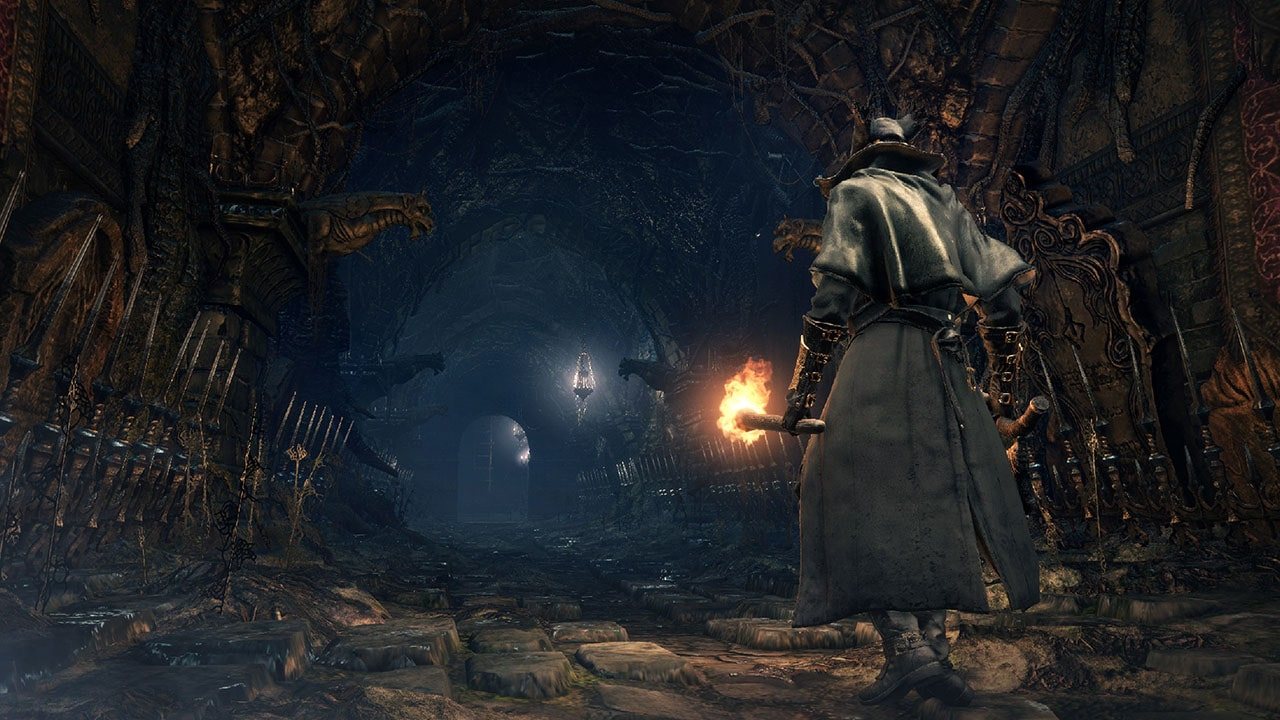
Official Bloodborne screenshot, PlayStation.
Settings that matter on a 1280x720 panel
- Render at 720p and upscale to the panel; do not render at 720p and leave it there if the output is
the full 1280x720 screen — the ports treat output resolution and render resolution separately.
- Target 30 or 40 fps. The frame-rate logic keeps physics and animation correct at any of the
supported rates, and a stable 40 beats an unstable 60 on a handheld.
- Leave the shader cache alone after the first area. The first minutes of a fresh install are the
worst they will ever be.
Once it runs, performance settings covers the levers in more depth, and multiplayer works on the Deck exactly as it does on a desktop.